Tips and General guideline for payment of Annual Bonus to the employees

Tips and General guideline for payment of Annual Bonus to the employees.
1) Bonus has no concern with blue or white-collar categories of employees.
2) Any person whose wages/salary is below 21000 (basic & DA) is eligible for bonus.
3) Any employee who work more than 30 days in a previous financial year is entitled for bonus.
4) The bonus is payable on Rs.7000 or minimum wages of that financial year, whichever is higher.
5) The percentage of bonus shall be decided based on allocable surplus in the balance sheet of the related financial year.
6) The set-on/set-off has to be done for the calculation of allocable surplus, which is done by the CA of the company.
7) As per payment of bonus act the last date of disbursement of bonus is 30th of November of every year.
8) Annual return is to submitted to the labour department in “Form D” before 30th December of every year.
9) The payment of bonus to the contract labour shall be paid by the contractor as above but as per his own outcome of balance sheet.

How to change Mobile Number / Password linked to UAN

How to change Mobile Number / Password linked to UAN

Following are the steps to change Mobile Number / Password linked to UAN :
Step 1 : After opening the Employees PF portal (link), click on forgot password.
Change Mobile Number linked to UAN

Step 2 : Enter your UAN and the Captcha as required by website
Change Mobile Number Linked to UAN

Step 3 : If you just want to reset your password, click YES. But if you wish to change Mobile number click on NO.
Mobile number linked to UAN EPF

Step 4 : On clicking NO, it will ask you details like Name, DOB, Gender and click on verify.
Enter Name DOB Gender to verify EPF UAN

Step 5 : Now it will ask to enter Aadhaar or PAN number to verify your name.
Aadhaar pan verify name in EPF uan

Step 6 : When the details are validated, you will be asked to enter your new mobile number and click on Get OTP to reset your password and change mobile number linked to UAN.
Enter new mobile number in EPF UAN

Aatmanirbhar Bharat Abhiyan 3.0 - EPF Scheme incentives benefits for Employers and Employees

Aatmanirbhar Bharat Abhiyan 3.0

EPF Scheme incentives benefits for Employers and Employees by the Government

New Incentives for Businesses covered in PF (Provident Fund) to boost Employment

If an establishment has less than 1000 employees, 24% PF (12% Employees share and 12% Employers share) shall be paid by the Government for their new employees employed on or after 01.10.2020.

This benefit shall be for a period of two years from the date of employment

If employees are more than 1000, then only 12% Employees share shall be paid by the Government. Employer continues to pay their 12% share.
Conditions:
• Scheme is for employees with monthly wages less than Rs.15,000/-
• If establishment has less than 50 employees, minimum 2 new employees be added.
• If you have more than 50 employees, you should employ minimum 5 or more new.
• New means, First time PF Registration, on or after 01.10.2020
• Also, if any old employee lost or left job between 01.03.2020 to 30.09.2020, then on re-employment after 1.10.20 he shall get the benefit.
• Businesses which are not yet covered in PF but do so now shall get the benefit for ALL their employees.
• Scheme open till 30.06.2021

Benefits:
• This is huge incentive by the Government to encourage businesses to add new employees and also to establishments not yet registered with EPFO to do so.
• Example, if an employee is at 14,999/- then Rs.1800/- (12% employee share) and Rs.1800/- (12% employer share), total Rs.3600/- per month shall be paid by the Government for 2 years
• Total of 3600X24= Rs.86,400.
• Both Employer and Employee get benefit of upto Rs.43,200/- each year in 2 years.
• It means PF shall not be deducted from new eligible employees.
• Ironically, it means that New eligible employees get Rs.1800/- per month more than existing old employees presently drawing less than Rs.15,000/- wages per month, for 2 years.
• It also means that Employees who left on or after 01.03.2020 and rejoin after 01.10.2020 shall get this incentive of upto Rs.1800/- pm but if any loyal employee stayed back and continued to work or joined before 01.10.2020 shall not be eligible for this benefit.
• nonetheless It is a grand incentive for new businesses that employ 20 or more employees on or before 30th June 2021.
• It’s also a grand incentive for existing businesses not yet covered in PF (employees less than 20) or those who have avoided or evaded PF registration. Till now enforcement department of PF would not only recover old PF dues, they would also recover interest and penalty. But now, there’s this huge incentive for such units to get voluntarily covered in PF.
Example:
Suppose one is able to adds 20 employees, it will mean benefit of upto Rs.43,200 X 20 X 2= Rs.17,28,000/- in 2 years.

And for new employees that one adds till 30.06.2021, each employee shall get additional benefit of Rs.43,200/- per year.

The employees can also get benefit of 24% of basic wages upto Rs.3600/- per month as this amount shall be deposited in their PF account by the Government for 2 years.

Maternity Benefit available for ESIC Covered Employees

Maternity Benefit available for ESIC Covered Employees

Did you know that if an employee is a regularly contributing ESIC Member, she can avail the entire maternity benefit payment from the ESI Corporation. In other words, an employer need not bear the maternity benefit burden in case an employee is covered under ESIC and has contributed for at least 70 days in the immediately preceding one or two contribution periods.

Quantum of Benefit Amount

Around 26 weeks of wages (six months salary) is payable to an eligible employee by the ESIC under this provision. The employer is not liable to pay any amount towards the maternity benefit to such employee.

Documentation and Procedure

Step 1 : Check Eligibility - An employee can check the ESIC benefits eligibility at the link given below. Please note that the link can be opened from Mozilla Firefox.
http://www.esic.in/EmployeePortal/login.aspx

Here, User Id is Employees IP No

Step 2 : ESIC Branch Office - Once the employee is eligible for the benefit, she has to approach nearest ESIC Branch office for completing the paperwork. The list of Branch offices is given below(Mozilla Firefox only).
https://www.esic.nic.in/branchs

Step 3 : Document Submission and Follow up
Once the branch office is traced, the employee is expected to submit the following set of documents.

To avail the benefits, employee will have to submit a claim form and Form L in person to the ESIC office along with the other docs mentioned in the list. On Production of birth certificate ESIC office will share necessary forms (Form 10 and Form L) for availing the benefit.

Documents Required:

1) MB certificates with Doctor's sign and stamp
2) MB final certificate after delivery (within one month)
3) IW's(Insured Women) bank details with A/C No. and MICR No. (with changed name after marriage) Cancelled cheque
4) Xerox copy of ESIC card
5) Baby's original birth certificate from corporation
6) Hospital discharge summary Xerox
7) Insured woman(IW) name should be the same on all documents
8) Xerox copy Aadhar
9) Claim form (Issued By Branch Office and to be submitted after delivery in person)
10) Form 10 (Issued By Branch Office, filled by employer and to be submitted)
11) L1 (Issued By Branch Office and to be submitted after delivery in person)

Process of PF Withdrawal - Outbreak of Pandemic (COVID-19)

Process of PF Withdrawal - Outbreak of Pandemic (COVID-19)

As per the announcement by Indian Finance Minister Mrs. Nirmala Sitharaman, up to 75 percent of PF money can be withdrawn by EPF (Employee Provident Fund) subscribers or three months of Wages from their total PF amount accumulated till date, whichever is lower, to help them in their financial emergency caused by the lockdown due to the coronavirus pandemic.

PF withdrawal requests can be submitted online by Provident Fund Members.

Here are the Instructions and conditions to withdraw your PF money online

Eligibility to file online claim for the purpose “Outbreak of pandemic (COVID-19)”
1. UAN should be activated.
2. Verified Aadhaar should be linked with UAN
3. Bank Account with IFSC code should be seeded with UAN

Eligible Amount allowed to be withdrawn from your PF account
1. Upto 75% of PF balance (View PF Passbook for EPF balance) or
2. Three months of PF wages or
3. The claimed amount by the member
whichever is the least of 1 or 2 or 3.

How to file online advance claim for the purpose “Outbreak of pandemic (COVID-19)”

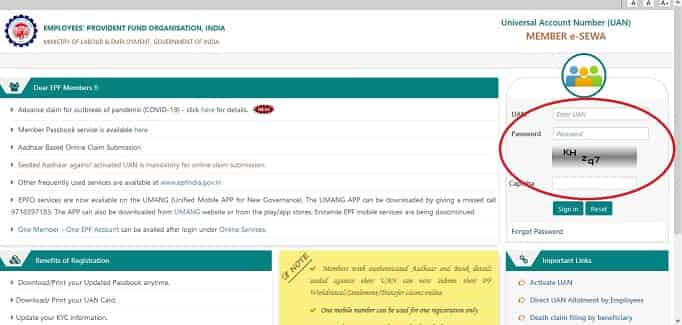
1. Login to Member Interface of Unified Portal
   (https://unifiedportal-mem.epfindia.gov.in/memberinterface)
PF Member login page

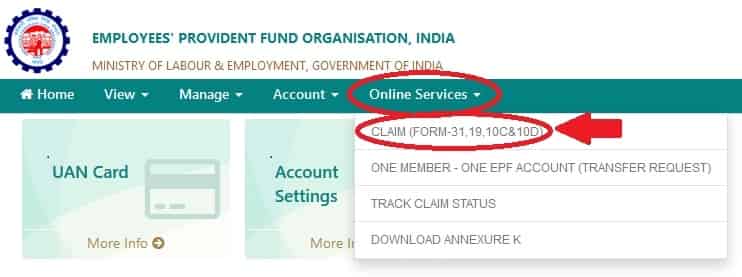
2. Go to Online Services >> Claim(Form-31,19,10C & 10D)
Submit Claim form for PF

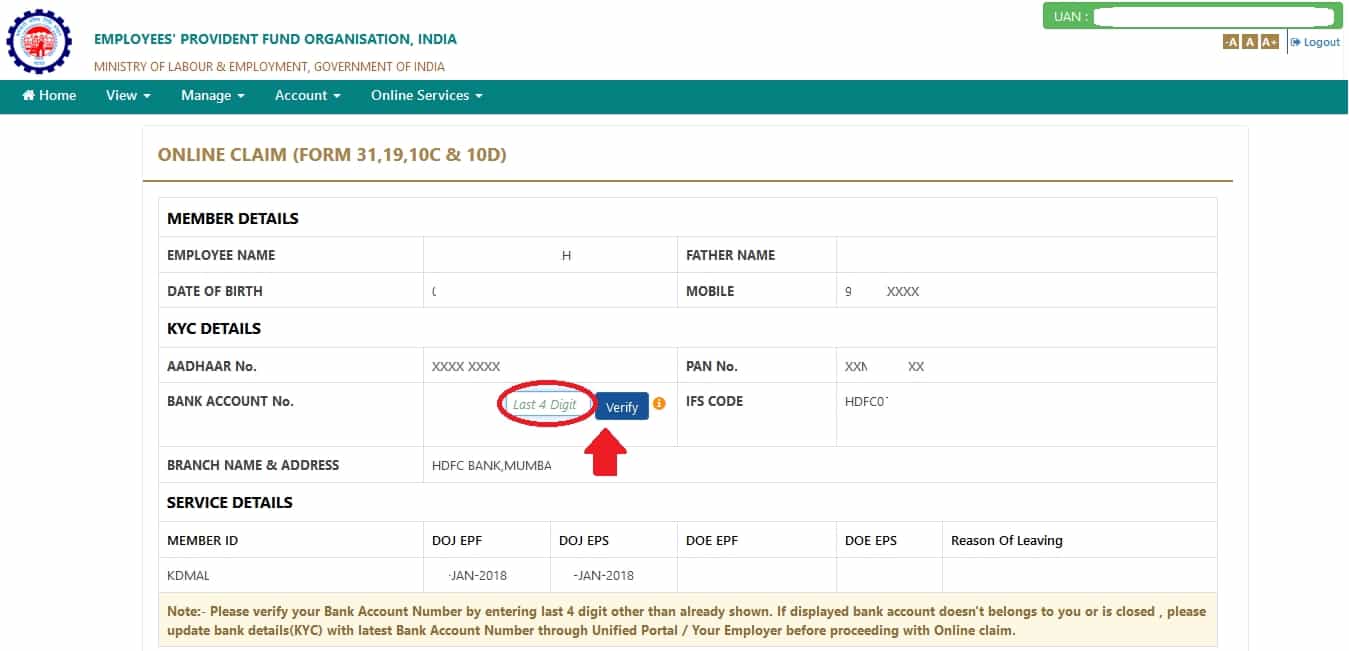
3a. Enter last 4 digits of your Bank Account and click on verify
Enter Bank Account for PF withdrawal

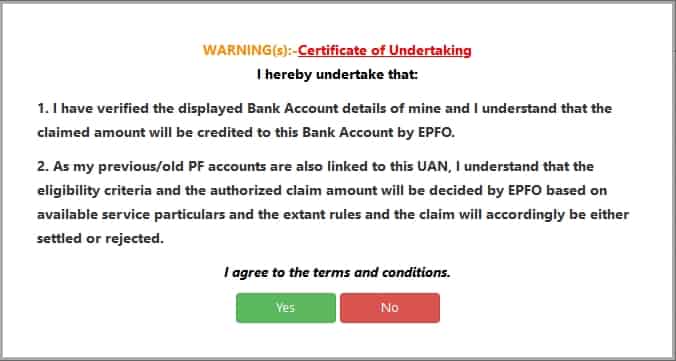
3b. Agree to the Certificate of Undertaking
PF Certificate of Undertaking

3c. If the Bank account last 4 digits number you entered matched with the PF records, you will see a verified green tick.
PF Bank Account verified

4. Click on “Proceed For Online Claim”
Proceed for online claim

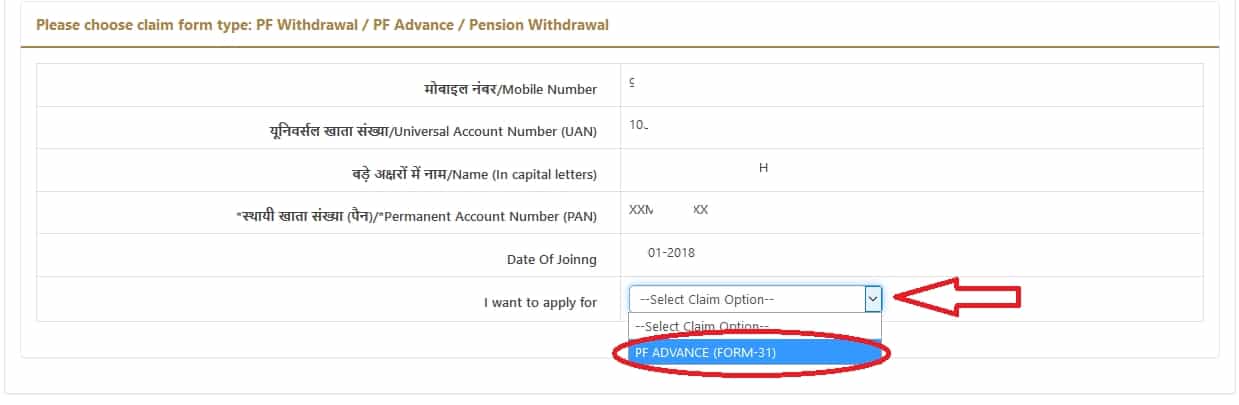
5. Select PF Advance (Form 31) from the drop down
PF form 31 advance withdrawal

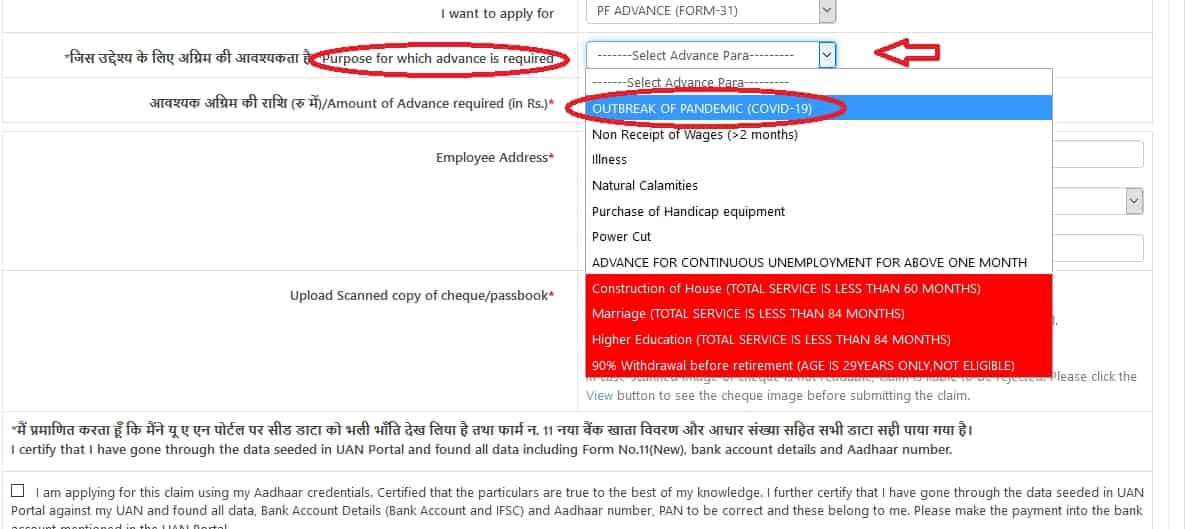
6. Select purpose as “Outbreak of pandemic (COVID-19)” from the drop down
Purpose of PF withdrawal - Coronavirus pandemic covid-19

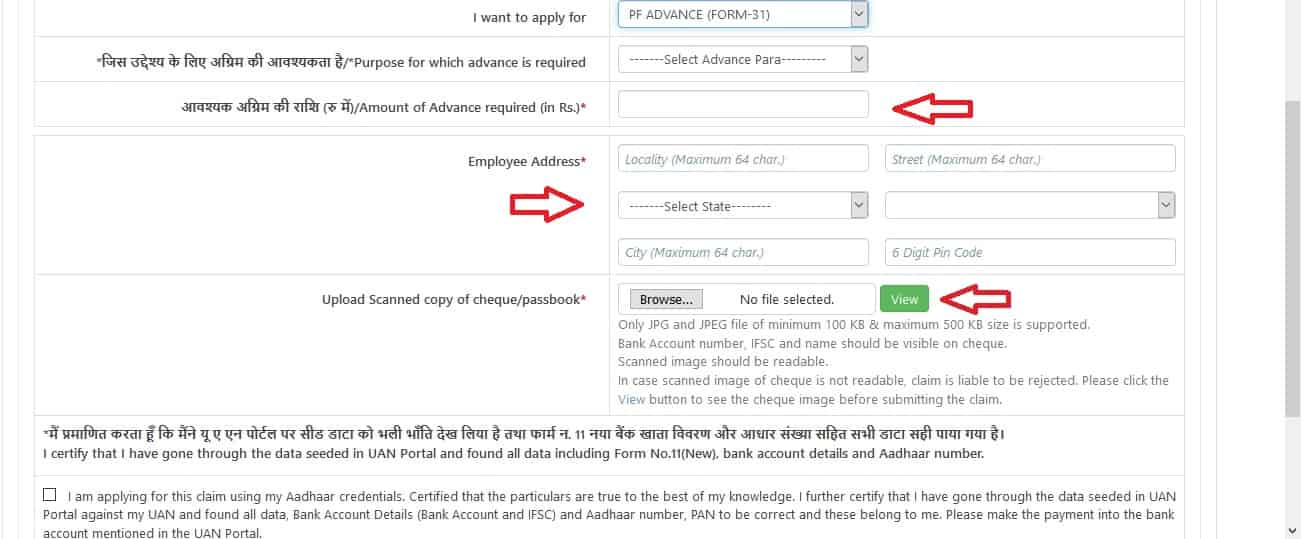
7. Enter amount required and Upload scanned copy of cheque and enter your address
Details required for PF Withrawal

8. Accept to apply with Aadhaar and Click on “Get Aadhaar OTP”

9. Enter the OTP received on Aadhaar linked mobile number.

10. Claim is submitted and you can now view the Claim submitted form and also the status of the claim.

Update PF Date of Exit / Date of Leaving in Provident Fund (PF) Employee member portal

Update PF Date of Exit / Date of Leaving in Provident Fund (PF) Employee member portal

Sometimes employer does not update the Date of leaving / Date of Exit of the member. In such cases, Employee / Member is not able to withdraw EPF or file transfer claim or final settlement claim. To overcome this problem a provision has been provided in the member login so that the member himself can update his date of Exit or Date of leaving. Member can update his/her date of Exit / Date of leaving only after two months of his/her last contribution received from the Employer / establishment. Date of exit should be within the last wage month for which contribution was received. This functionality has been deployed at Member Portal.
Following are the steps to use this functionality:

Manage>>Member Exit
(URL: https://unifiedportal-mem.epfindia.gov.in/memberinterface/)
> Please enter the User ID(UAN) and Password for login.
EPF member portal
> Select the option “Member Exit” (Manage>>Member Exit)
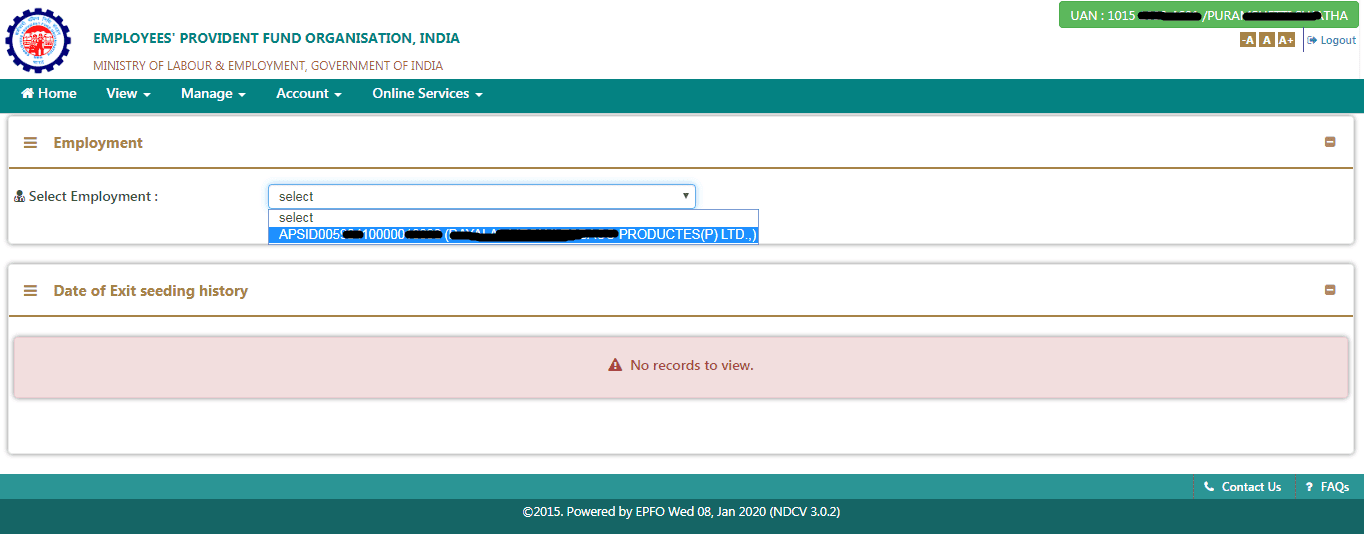
> Select the PF Account number from the field “Select Employment”.
select employer
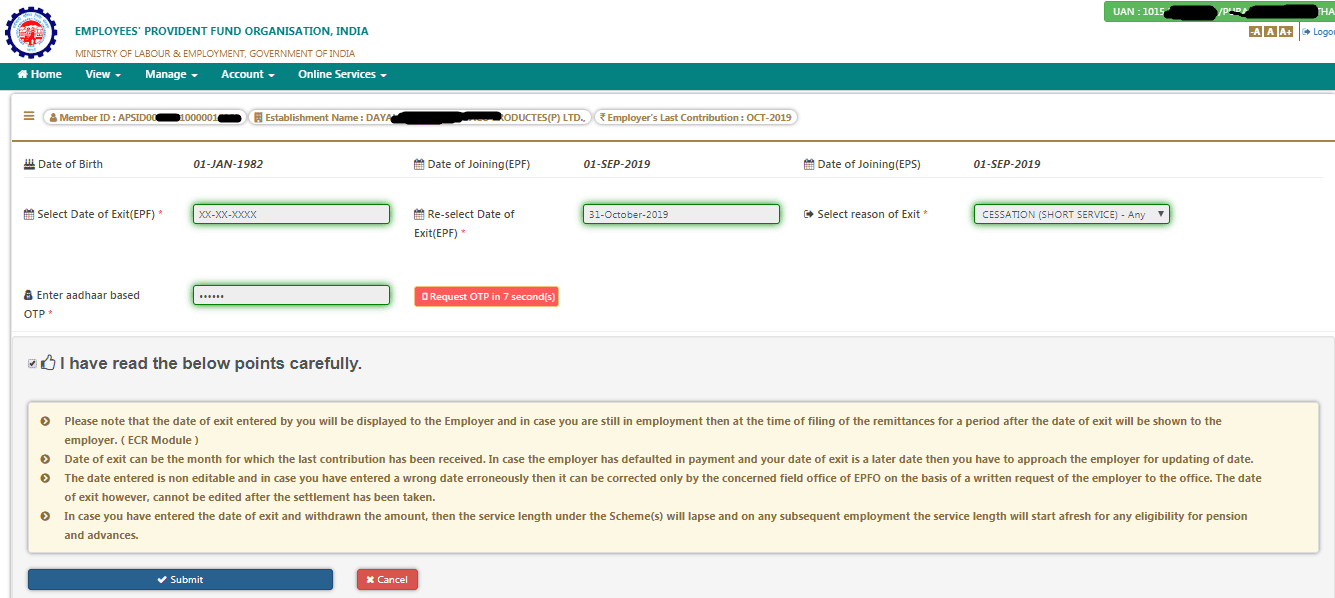
> Enter the  Date of Exit in the field “Select Date of Exit (EPF) and “Re-select Date of Exit (EPF).
> Select the reason of exit from the field “Select reason of Exit”.
> Click on option “Request OTP”. OTP will be received on Aadhaar linked Mobile Number.
> Enter the OTP in the field “Enter aadhaar based OTP”.
> Select the checkbox by clicking and submit.
Enter Date of Exit in pf
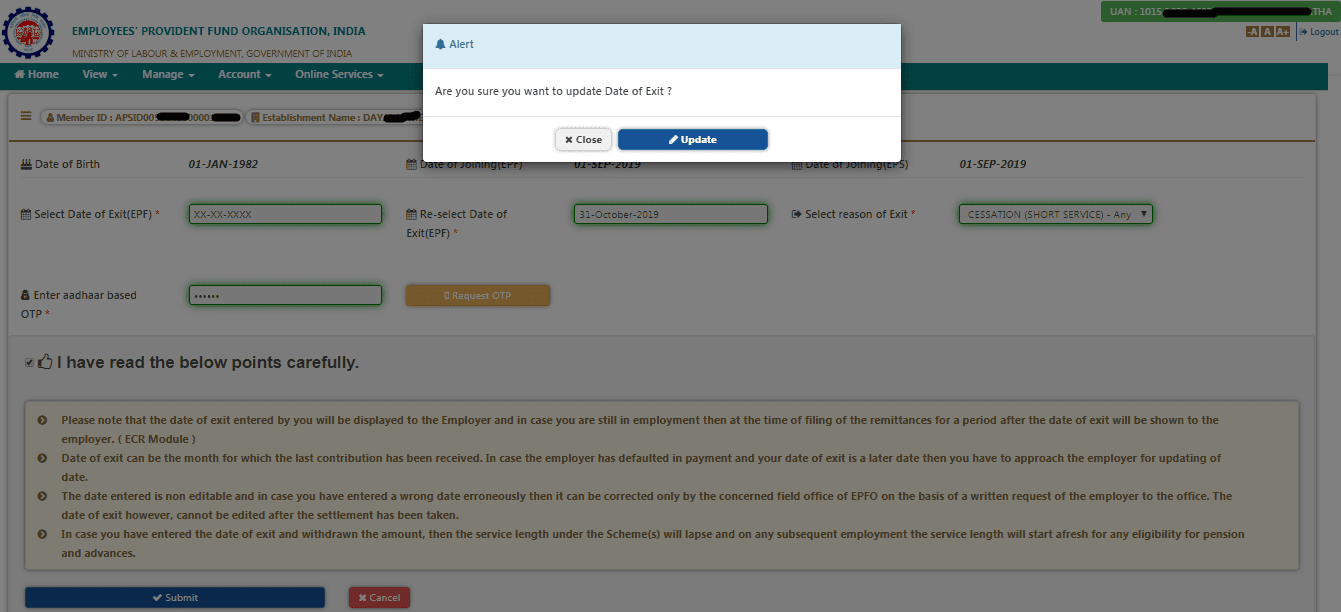
> Click on “Update” button in “Alert”.
Confirm Date of Exit in pf
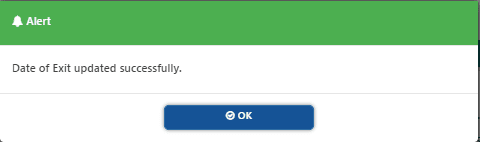
> Click on “OK” button in “Alert”.
Date of Exit update success page
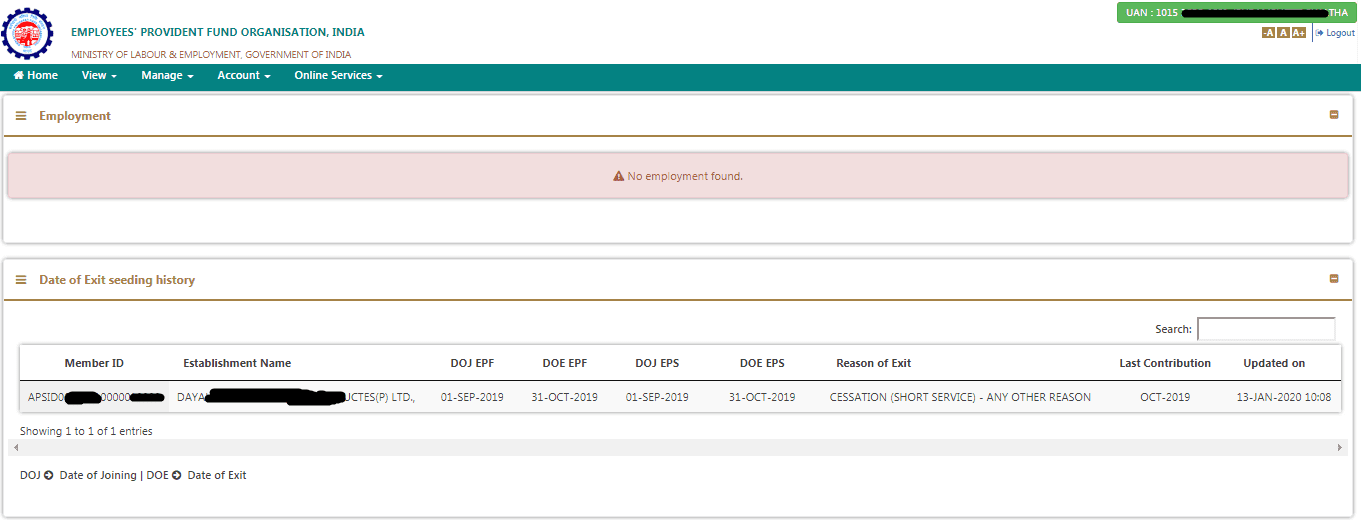
> Date of Exit updated successfully. See the “Date of Exit seeding history”.
Date of Exit History

Share with your family and friends and help them to solve their EPF date of exit problems !

Rate of contribution under the ESI Act reduced from 6.5% to 4%

Update : Government of India: Rate of contribution under the ESI Act has been reduced from 6.5% to 4% (employers’ contribution reduced from 4.75% to 3.25% & employees’ contribution reduced from 1.75% to 0.75%). Reduced rates will be effective from 1st July 2019.

Click here to download the Gazette copy.

ESIC  today issued a Press note stating that the government has approved the reduced the rate of contribution.

However this reduced rate of contribution is to be notified through a final notification in the gazette. Only then it attains legal force and can be implemented.

Some media reports say that the reduced  rate of contribution will be  effective from 1st July 2019. But until the gazette notification is published in black and white, it should not be taken into consideration for implementation.

Hence let us wait for the publication of the gazette notification before taking a call on its implementation.

How to make profession tax payment online on mahagst.gov.in FY 2018-19

How to make profession tax payment online on mahagst.gov.in FY 2018-19

We have to inform you that, the last date of payment of profession tax for FY 2018-19 is 30th June 2018. You are requested to pay the profession tax before due date.

Since the system for professional tax payment shifted to new SAP based website; the clients and even banks are facing problem in making online payment. Therefore, to facilitate e-payment and to save your time, we have prepared guide for making e-payment of profession Tax.

We have prepared to step by step process guidance for making profession tax payment. We are sure that this would certainly help you in making payment.

New process to make Profession Tax Payment FY 2018-19:

1. Visit https://mahagst.gov.in/

2. At the Top of page there is option to convert website text to English, please Click on the same and now you will see website in English

3. Scroll down and you will find eight square boxes having various service options under the Welcome / Suswagata

4. Scrolls and take your cursor to 'e-payments' box (don't click). And from the available 3 options click on 1st option 'Advance Payment"

5. Now on next screen: From the available options (TIN, PAN, TAN & Old Act); chose PAN (Click on circle opposite to PAN.

6. Enter your PAN (i.e. PAN of proprietor, professional, director or Company etc.) in given box. You can also enter your PTE number if you remember it by clicking on TIN.

7. Enter the Captcha text properly in empty box below that. (you can generate new Captcha if text not easy to understand) Then Click on Next

8. Now your PTE number will appear along with name confirm the same.

9. In ACT option - Select --- PTEC ACT

10. In Form ID - Select ---- Form_VIII

11. In Financial Year - Select ----- 2018-2019

12. In Period - select ----- April 2018-March 2019

13. In Location – Select- Mazgaon (from drop down list.)(Other district in case your number from other city)

14. In Amount (INR) – Enter ---- 2500 (or applicable amount)

15. In mobile NO. – You can enter/alter if you want different number or keep existing

16. Then confirm all the details entered and CLICK on "Proceed for Payment"

17. AT next Screen – Select "Agree" option at the top-middle of the screen

18. Then Click on SBI ePay (or GRAS if your bank is not supported by SBI epay)

19. Then Click on "Proceed" at the right-bottom side of screen

20. Then the draft challan will appear on screen. Confirm the details of challan

21. Then click on "Make Payment" option at the center-bottom of screen

22. At next Screen " Click on "Internet Banking" option at the centre of screen

23. If your bank is SBI Click on SBI Symbol or Chose bank from drop down menu under 'All Banks"

24. After Choosing your bank Click on "Pay Now" (You will be charged with Rs. 11.80 (extra by bank as service charges)

25. Now you will be taken to 'internet banking' page of your bank

26. Enter your user id and password and make payment

27. After making payment wait to get the challan generated. Don't close or refresh after making payment. Print and save the challan generated.

How to Submit PF withdrawal Claims online

How to Submit PF withdrawal Claims online

How to Submit PF withdrawal Claims online

Employees Provident Fund Organisation

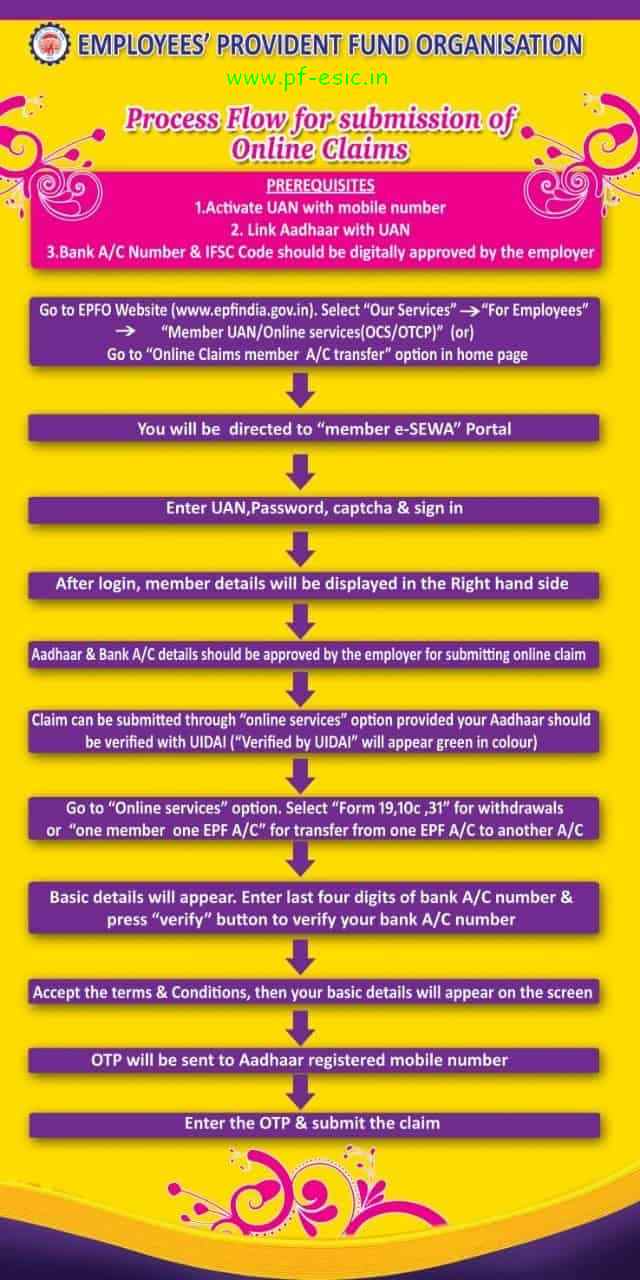
Process Flow for submission of PF online claims

1) Prerequisites :
a. Activate UAN with mobile number
b. Link Aadhaar with UAN
c. Bank A/C Number & IFSC Code should be digitally approved by the employer
2) Go to EPFO Website (www.epfindia.gov.in) Select "Our Services" => "For Employees"
    => "Member UAN / Online services (OCS/OTCP)" (or)
    Got to "Online Claims member A/C transfer" option in Home page.
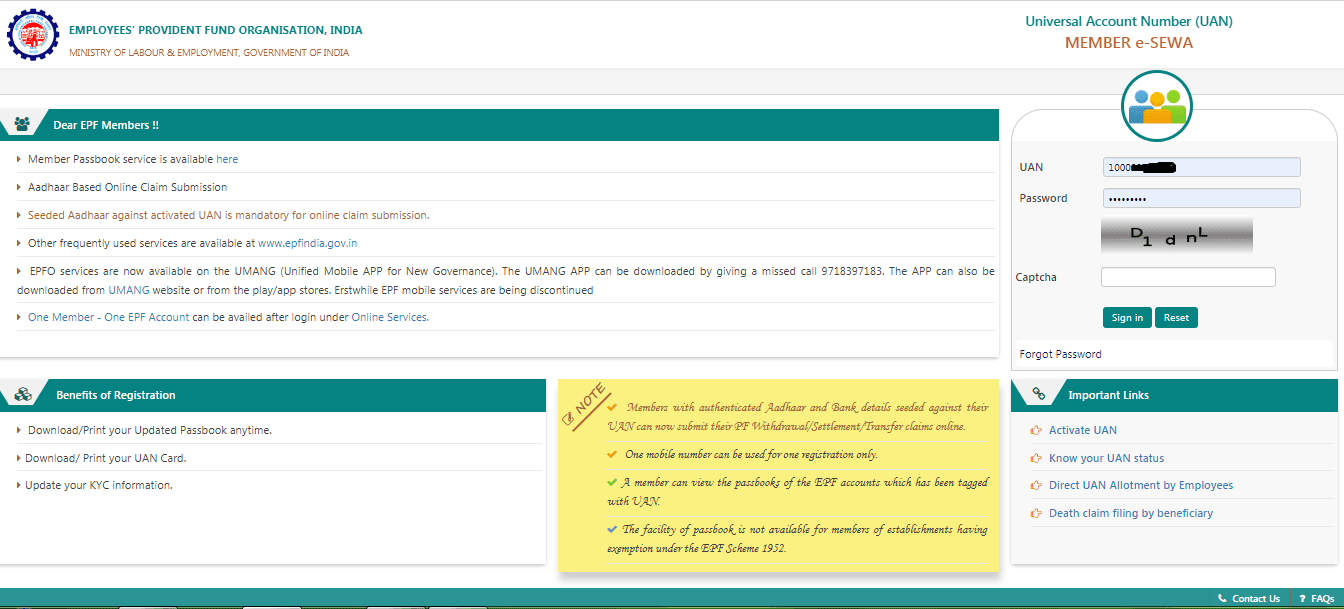
3) You will be direct to "member e-SEWA" Portal
4) Enter UAN, Password, captcha & sign in
5) After login, member details will be displayed in the Right hand side
6) Aadhaar & Bank A/C details should be approved by the employer for submitting online claim
7) Claim can be submitted through "online services" option provided your aadhaar should be verified with UIDAI ("Verified by UIDAI" will appear green in colour)
8) Go to "Online Services" option. Select "Form 19,10c,31" for withdrawals or "one member one EPF A/C" for transfer from one EPF A/C to another A/c
9) Basic details will appear. Enter last four digits of bank A/C number & press "verify" button to verify your bank A/C number
10) Accept the terms & Conditions, then your basic details will appear on the screen
11) OTP will be sent to Aadhaar registered mobile number
12) Enter the OTP & submit the Claim.

Share the Post with others so that other can benefit too !

EPF Provident Fund Correction of Name , DOB and Gender online process

It has been noticed that many EPF (Provident Fund) members and Employers are facing problems in seeding Aadhaar Number with UAN as there is a mismatch in Employee Name, DOB or Gender between Aadhaar data and UAN data. Even a minor letter or an extra space between names is generating the mismatch error between Aadhaar Data and Name Data. Previously member and employer were required to give joint request to concerned EPFO field office for correction in basic details along with various proofs for the same.

Now, this request of Correction in Name, Date of Birth (DOB) and Gender can be given online by the member and the same can be approved by Employer and be forwarded online to the concerned EPFO office.

Find Below the Step by step process to request EPF Name Correction , DOB and Gender as per Aadhaar online :

Step 1: Member will need to login through his UAN and Password on EPF Member Interface of Unified Portal ( Member should have activated UAN to access this portal )

https://unifiedportal-mem.epfindia.gov.in/memberinterface/

Step 1 EPF Member Login page

Step 2: On the Menu bar , Click on “ Manage > Modify Basic Details ”.

Step 2 Modify Basic Details in EPF

Step 3: Here provide the correct details such as Name , DOB and Gender as per Aadhaar Card you want to link with UAN (System will verify the details entered with UIDAI - Aadhaar Data)

Step 3 Provident fund Name Correction online

Step 4: On clicking “Update Details” on the previous screen, the request will be submitted to the employer for further approval. Before submission by employer, employee can withdraw the request by pressing “Delete Request” or the cross mark in the Action Column. He can also see the details of the changes by clicking on view (magnifying glass icon) in the details column. The present status of Changes will be " Pending at Employer ".

Step 4 Name Correction Status

Step 5: Employer will need to login to Employer Interface of Unified Portal

https://unifiedportal-emp.epfindia.gov.in/epfo/

Step 5 EPF Employer Login

Step 6: Employer can view all the change requests submitted by employees by clicking on “Member > Details Change Request”

Step 6 EPF Employer modify Basic details

Step 7: Employer can view the online requests received from employees and can then take appropriate action such as approving or rejecting by giving the proper remark.

Step 7 EPF Basic details approval

Step 8: After approval of the request, the request is sent to the concerned EPF Office for further process and the employer can see the latest status of the request.

Step 8 EPF Basic Details change Status

Step 9: After approval of the request by the employer, the request will appear as a task in login of Dealing Hand, of concerned EPFO office, in the Field Office Interface of Unified Portal.

Step 9

Step 10: Dealing Hand can now login and view the online change requests by clicking “Member > Details Change Request”

Step 10

Step 11: After due verification Dealing Hand can submit his/her recommendations to Section Supervisor.

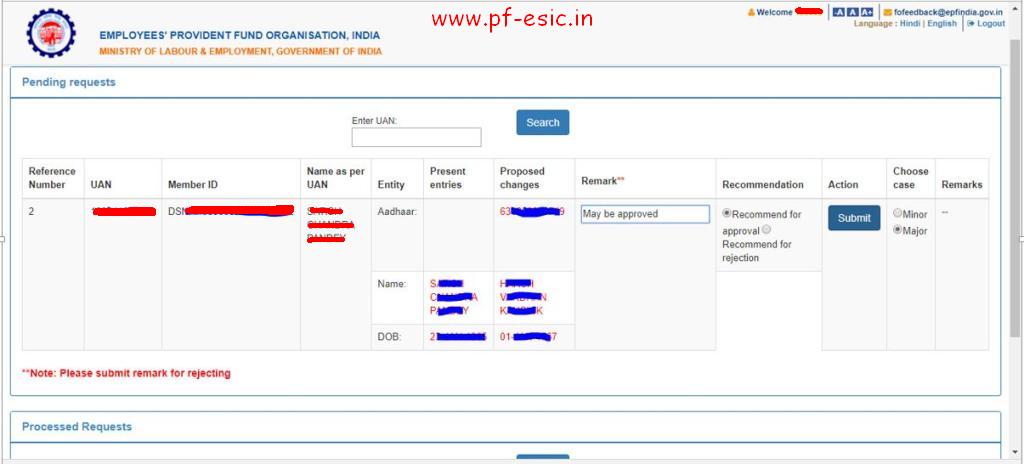
The Dealing Assistant can put the case either for Approval or Rejection by selecting the appropriate radio button i.e. Recommended for Approval or Recommended for Rejection with proper remarks.

In the same manner, Section Supervisor can submit his/her recommendations to APFC/RPFC.

Step 11

Step 12: Finally APFC/RPFC can Approve/Reject the case.

Step 12

This is the Complete process for online Name Correction , DOB correction and Gender Correction along with seeding Aadhaar number to your Providend Fund UAN.

Provident Fund ( PF ) - Name / DOB / Gender Mismatch with Aadhaar

Name & DOB matters of PAN & Aadhaar linking with PF UAN.

It is a matter of concern for the Employees and Employers of the establishments that the Government is insisting upon linking of Aadhaar for every benefit. Now, HR Recruitment division of Establishments should ensure that they recruit only those persons whose Name and Date of Birth are same in all Government related documents. If not, the statutory compliance of such Employees may become a problem. EPFO has made it mandatory from 1st July, 2017.

So, the Employees should first ensure that Name and Date of Birth should be matched exactly with each Alphabet/Number in the following Government related matters:-
PAN
Aadhaar
Bank account
UAN of EPFO / ESIC

Also, the HR of Establishments has to use the same Name and Date of Birth in the Service Records of Employees in Company.

In case it is not same, the Employee has to first decide how his Name/DOB should appear in records. Then approach Income tax/Aadhaar/EPFO/ESIC departments for necessary corrections. This may take one to two months for effecting corrections as it has to undergo certain Government procedures as per Guidelines issued. It may also be ensured that Father’s/Spouse name also be same in all records stated above.

Name change requires Gazette notification of State Government. However, for a Surname change of a lady after marriage, Marriage Registration certificate is sufficient.

For example, in case of EPFO, I am enclosing herewith a specimen format in which such correction of Name and Date of birth of Employee can be done. It is called ‘Joint Declaration’ letter, to be signed by both Employer and Employee, printing it on the letter head of the Establishment. The letter should be enclosed with copies of PAN, Aadhaar, Bank Passbook/Cheque having printed name on it, Appointment letter/Company ID, all self signed, ensuring that details in all these documents are same.  This has to be submitted to EPFO office and acknowledgement taken.

For the officials of EPFO, it has become an additional work, as there are now 5 crore EPF subscribers in India and majority of employees are sending such Joint Declaration letters through their employers to EPFO. It takes time for effecting such correction as the permission is to be taken from Regional PF Commissioner for correction. The correction has been done or not can be verified in the EPF Passbook of the Employees.

Provident Fund Payment Status and Receipt using TRRN

Provident Fund payment by employers is now accepted online only and not any more through banks as it was earlier accepted before December 2016. Provident Fund online challan generation and payment is now done through EPFO - Unified Portal only. Even for the payment of the monthly PF Challan, one has to login to the EPFO - Unified Portal. Now even after your PF Challan Payment online, the status of payment is under process and is not reflected immediately. So one is not sure if the payment for the PF Challan for the month has been accepted or rejected. To check this you will have to login again and see after some time. But there is a way one can check the status of the PF Challan payment without login using the TRRN no. of the challan. Here you can also take the printout of the PF Challan payment receipt without actually logging in into the EPFO portal for records.

Below are the steps to Check Payment Status and get PF payment receipt using TRRN no.

Go to the Employer Provident Fund site : https://www.epfindia.com
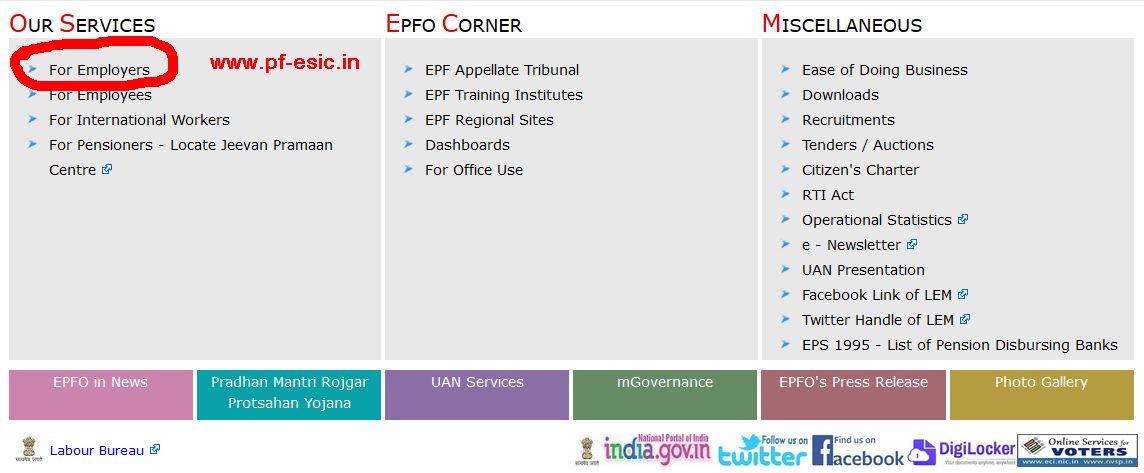
Here in the Our Services Section, Click on the link "For Employers" as shown below.

EPF Home Page
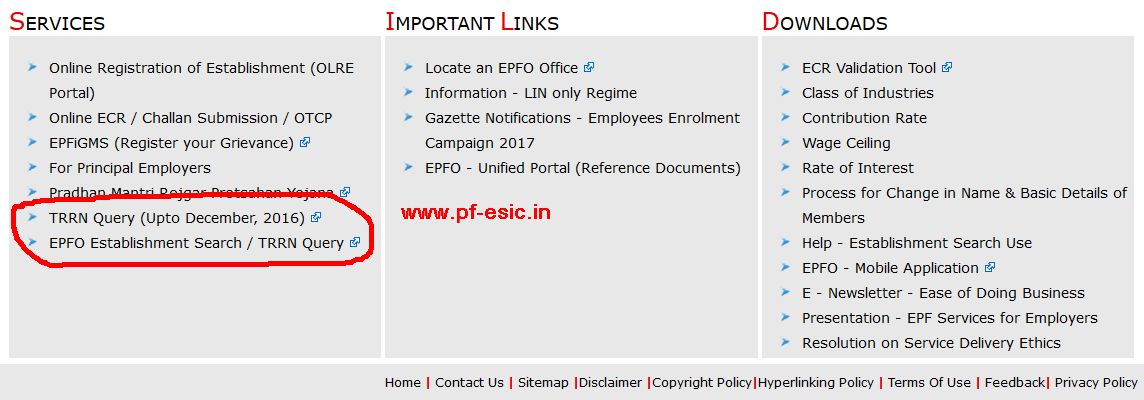
Now in the Services Section, you can see two link "TRRN Query (Upto December, 2016)" and "EPFO Establishment Search / TRRN Query".

TRRN Search
Suppose you want to see status of your PF payment for which the challan had been generated before December 2016 then you will have to click the Link "TRRN Query (Upto December, 2016)"
TRRN Old
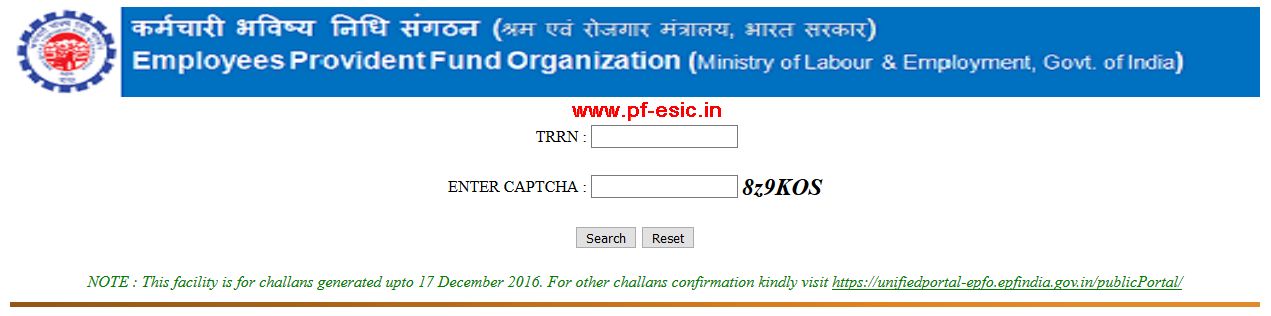
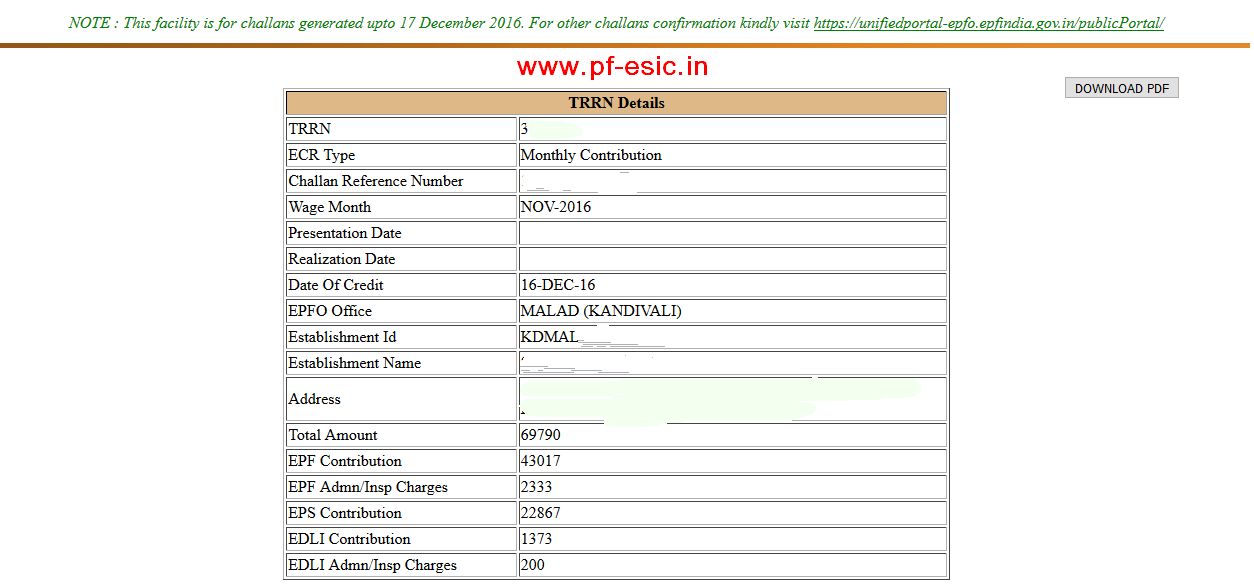
Here you will enter your TRRN no. and the captcha to see the status of the PF Challan payment as shown. You can also download the status as a PDF.

TRRN Old data
Now to see the PF Challan payment status of the Challan prepared after December 2016, you will have to click the link "EPFO Establishment Search / TRRN Query" in the services section.
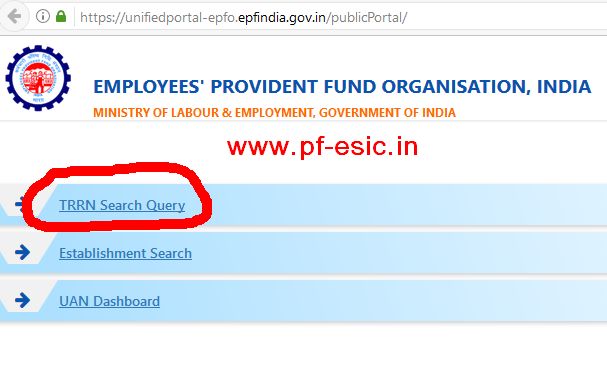
After clicking on the link you will see a page as below, where you will have to click on the TRRN Search Query link.

TRRN Query Link
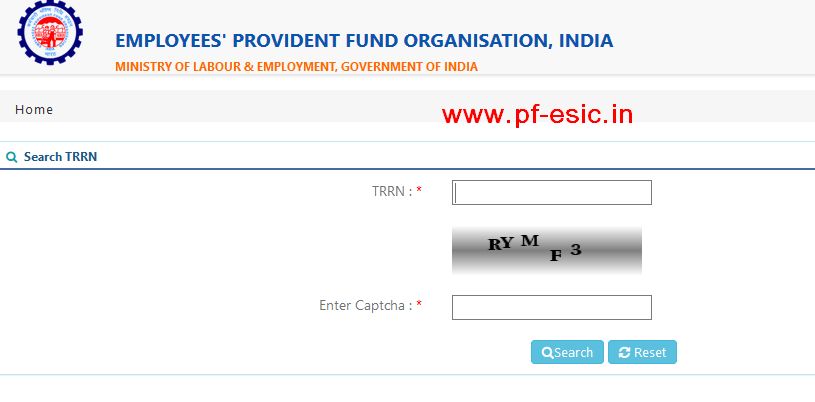
Now you can see the page where you have to enter your TRRN along with the Captcha and click on Search button.

TRRN input
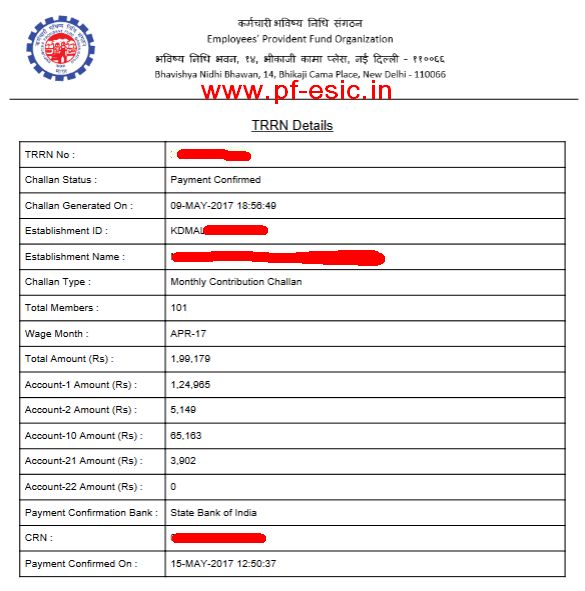
Clicking on the search button will provide you the status of the PF Challan with TRRN number you entered along with other information such as Challan generated on, Establishment ID, Establishment Name, Challan Type, Total Members, Amount, Payment Confirmation Bank, CRN, Payment confirmed on and some more as shown below.

PF Payment Receipt
Here you can also Click on the Download PDF button on the upper right corner as shown above to download the receipt of payment and status of the PF Challan as shown below to keep for your records.

PF Payment Receipt PDF
This is how you can get the Provident Fund payment receipt and status using TRRN number.

How to view your EPF Passbook or PF Balance using UAN

Most of us have noticed that every month there is a deduction in our monthly salary on the head of Provident Fund, So what is this Provident Fund ?
Provident Fund or (EPF - Employees Provident Fund) is retirement benefit scheme offered to all salaried employees by the government. It is maintained by Employees Provident Fund Organisation of India (EPFO). So now the question arises that how to know how much Provident Fund I have contributed and how do I see that? Can I know the balance of my EPF account? Is there a way I can see my EPF balance as I can see my bank account balance in my Bank Passbook ?
The answer is YES !
EPFO has provided the service to check your PF Balance and also view your EPF Passbook. With the introduction of Universal Account Number (UAN), you can view your PF Balance and PF Passbook online after activating your UAN.
Below you can see how to view your EPF Passbook using your UAN on EPFO website :

Firstly go to the official EPFO website homepage : https://epfindia.com
You will see some sections on the homepage about various EPF services and related information. Now you need to click on the "For Employees" link in the "Our Services" section as shown below.
EPFO Home Page
Now you are shown a For Employees Page where again there are some sections about member EPF services and related information. Here click on the "Member Passbook" Link in the Services Section as shown below.
Employees page on EPFO site
After clicking the Member Passbook link, you are shown a page where you need to enter your Universal Account Number (UAN) and Password (Created during activating your UAN) and press "LOGIN".
Member Passbook Facility on PF site
You are now on the screen where you can see your PF Member ID as shown below. Click on your PF Member ID to view your Passbook.
View PF Passbook Memberid
After clicking on the PF MemberID you will be see your EPF Passbook as shown below with details such as your monthly contributions,    Employee Share Contribution, Employer Share Contribution, Pension Contribution and the total Contributions in each head as shown below.
Provident Fund PF Passbook
Now you know how to view your PF Passbook and PF Balance using UAN. Share this article with your friends and family and help them to view their EPF Passbook and EPF Balance !

How to Check EPF Balance and view EPF Passbook on Mobile

How to Check EPF Balance and view EPF Passbook on Mobile

Most of the Salaried Employees are curious to know about the PF balance of their Employee Provident Fund (EPF) which gets deducted from their salary every month. Also a lot of people are sceptical about the PF which is deducted from their salary is getting collected in their PF account or not. It would be very helpful if one could see their PF balance just like your bank account statement. EPFO has provided this service and most of them are unaware of it. EPF Balance and EPF Passbook can be seen by every employee who is contributing or a member of the Employee Provident Fund. You can view your EPF Balance and EPF Passbook using Universal Account Number (UAN) on the official site of EPFO.

To make it even easier, the EPFO office has come out with a mobile app currently available only for android to check your EPF Balance and to view your EPF Passbook using UAN.
You can download the m-epf app from the Google Playstore.

Download the app and install it on your android phones.

When you open the app you will be taken to the Home Screen of the app as shown below. You will 3 Buttons on the screen namely "MEMBER", "PENSIONER" and "EMPLOYER". In this article we are concerned about the Member's EPF Balance so click on the "MEMBER" button on the home screen.

m-epf app home Screen

After clicking on the "MEMBER" button, you will see a screen with 2 buttons, "Activate UAN" and "BALANCE/PASSBOOK".
Click on "BALANCE / PASSBOOK" button to check you EPF Balance or to View your EPF Passbook.

m-epf app member screen

Now you will be on the screen where you need to enter your UAN and Mobile number and then click on SHOW button.
Note : To view your PF Balance / PF Passbook your UAN needs to be activated and linked to a mobile number.

m-epf Member balance

After clicking the show button, you will see the Member details with EPFO.
Here you will able to see your Member ID, UAN, Name, DOB, Aadhar, Bank, PAN, Last Contribution, Balance and Status. (All the details as availabe with EPFO)
You can see your EPF Balance on this Screen as shown below.

m-epf Member balance show

Click on View Passbook button to see EPF balance transaction wise as shown below.

m-epf Member passbook

This is how you can see your EPF Balance and EPF Passbook on your mobile.

Do share this article with your friends and educate them about how to check their EPF Balance and view their EPF Passbook.